
There are two places to download a digital collections item: from the file manager, or from the image viewer. When the item you're downloading is an image or pages from a book, downloading from the file manager allows you to download a higher quality file than downloading from the viewer. Also, downloads from the file manager include the local id number as the filename, making citation easier. To download an audio file, you must use the file manager. Details on how to download from each place are listed below. NOTE: If downloading from the image viewer, please follow the instructions carefully to avoid receiving an error message.
To download a JPEG, JP2, TIFF, PDF, or MP3 file from the file manager, do the following: Scroll down below the viewer to the part of the record in blue that says “Files.” Click the “download” button next to the file marked “Public:”
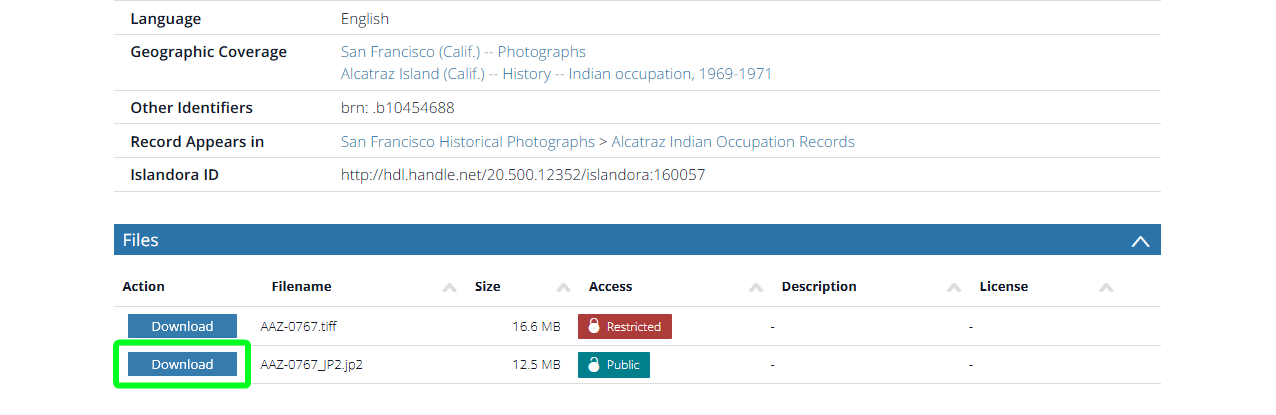 A “Save as” window will open. Choose the file destination and then click “Save.” The image will be saved onto your device, with a filename that matches its local i.d. number in digitalsf.org. You can use that local i.d. number to cite or retrieve the item in digitalsf.org later.
Please note: JP2 images will not open in your browser. On a Mac, JP2 files will open in Preview. To open JP2 files on a PC, you need Photoshop or other image editing software capable of handling this file type. On a web browser, search for “opening JP2 files on a PC” to find free software applications you can use.
A “Save as” window will open. Choose the file destination and then click “Save.” The image will be saved onto your device, with a filename that matches its local i.d. number in digitalsf.org. You can use that local i.d. number to cite or retrieve the item in digitalsf.org later.
Please note: JP2 images will not open in your browser. On a Mac, JP2 files will open in Preview. To open JP2 files on a PC, you need Photoshop or other image editing software capable of handling this file type. On a web browser, search for “opening JP2 files on a PC” to find free software applications you can use.To download a lower-res JPEG image that you can view in a browser, use the download button inside the image viewer. Choose the last option:
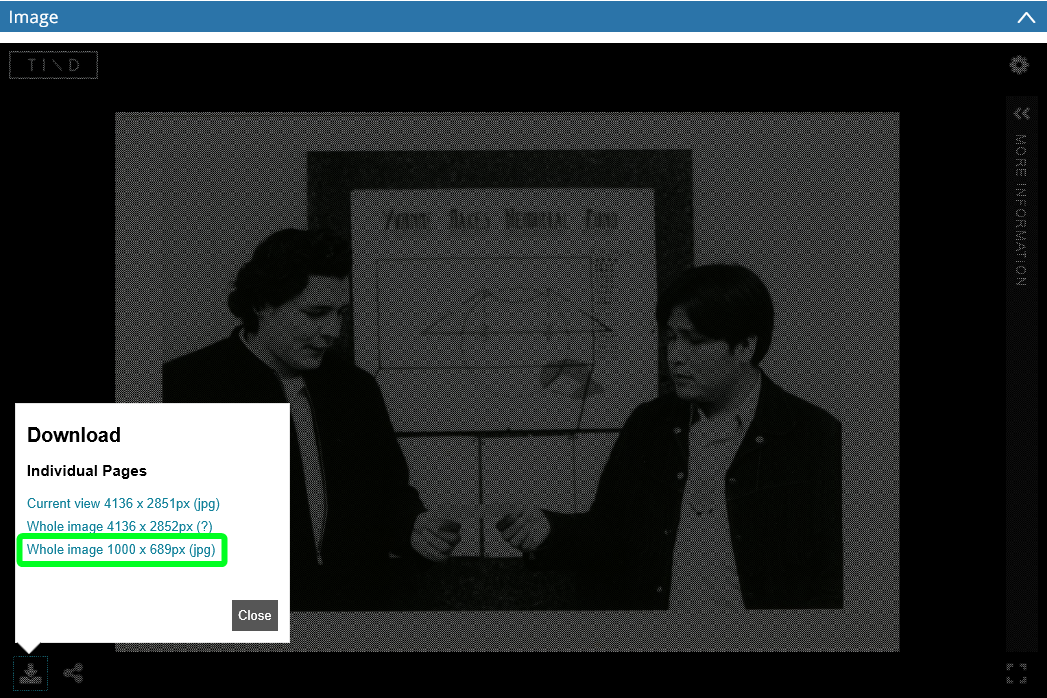
The image will open in a new tab in your browser. To save the image, right-click on it:
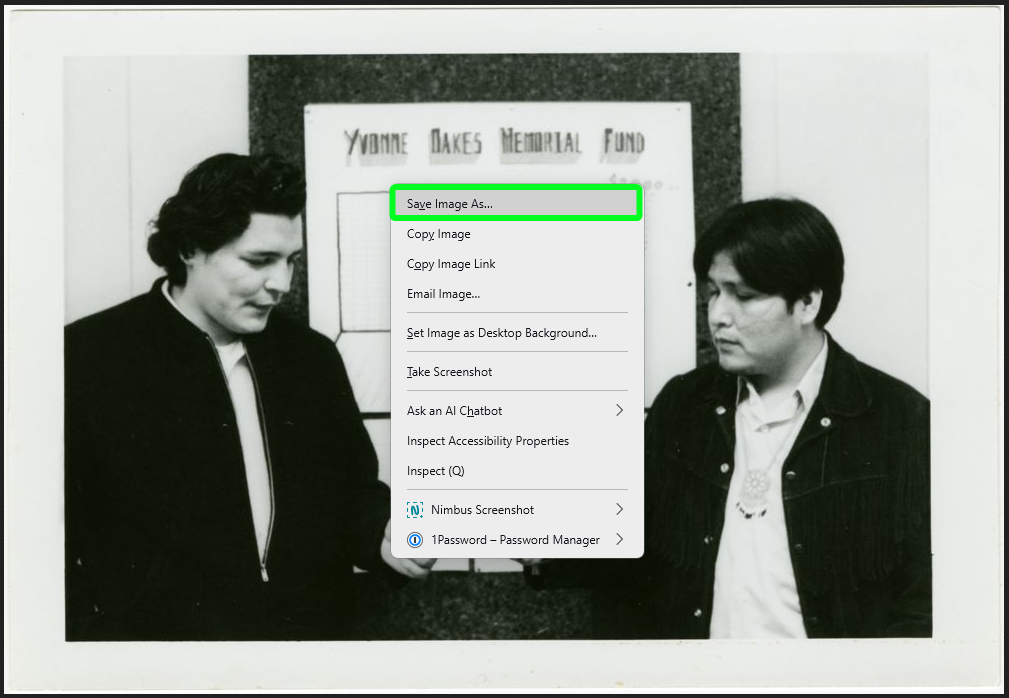
Select “Save as,” and use the Local Identifier (highlighted below) as your filename, e.g. AAZ-0767. This will be useful later when you’re citing or trying to retrieve the image again:
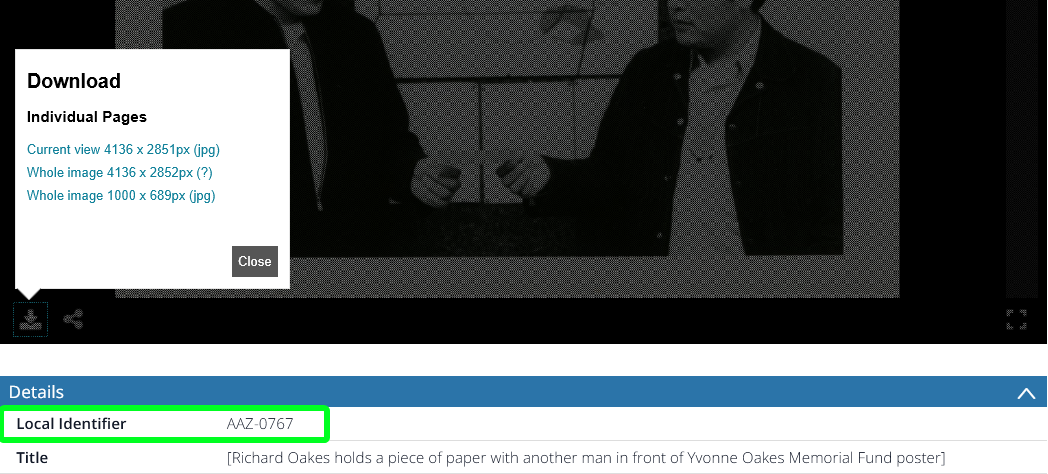
For download options, what is the difference between current view and whole image?
“Current view” will save just the portion of the image that is displayed in the viewer in a new tab, whereas “Whole image” will open the entire image in a new tab.
TIFFs are lossless files that contain all the original file information without degrading the quality of the image. TIFFs are large files and are great for long-term preservation or editing. JPEGs are highly compressed files that are good for online publication and sharing due to their relatively small size. The type of file compression used in JPEGs does cause some loss of detail in files, though not always viewable to the human eye. JP2s are high-quality compressed files, offering a good compromise between file size and image quality. JPEGs open easily in browsers; JP2s and TIFFs have limitations in browsers; see "How can I download an image or other item" question above for details.
To create a new user account, click on “login” located in the top right corner of the digitalsf.org homepage.

Next, select “Create account” located just below the box in the center of the screen.
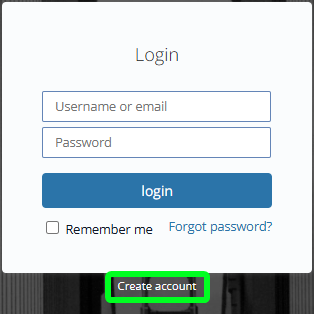
Fill out the form, then verify your email by clicking on the link sent to you at the email address you provided. With a user account, you can save searches, citations, and items.
Yes, once you have created a user account, all your searches are automatically saved to your account. Click on your username/nickname in the upper right-hand corner to see your account details. On the “Your Account” page, select “Your Searches” to see all the searches you have done. You can do the same search again by locating the proper search pattern and selecting “Execute search.”
Users can save items to “baskets” once they have created an account. The Baskets functionality allows you to create sets of records and group them together. You can access the Baskets feature in two ways once you are logged into the system:
- Click on your name in the top right-hand corner of the interface, then select "Your Baskets" on the main Account page.
- Hover over "Personalize" in the navigation menu and select "Your Baskets" from the drop-down menu.
The first time you go to Your Baskets, the list will be empty. In order to start using the Baskets functionality, you will have to create a new basket.
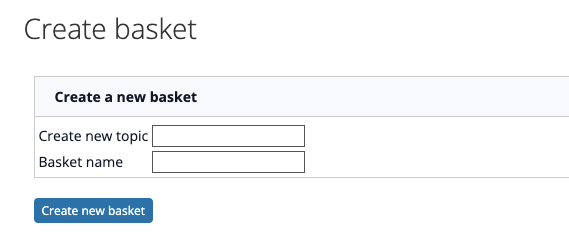
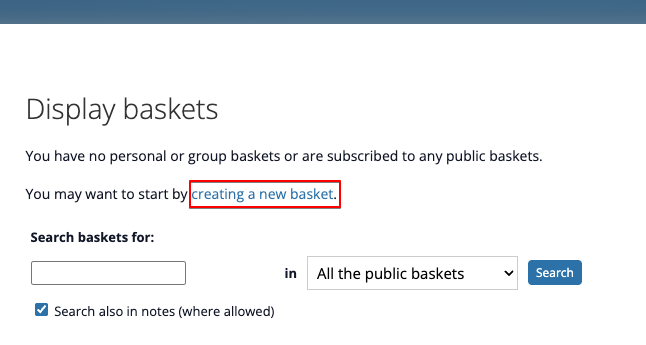 Set a name for the basket. You will also need to add a topic. When you have added a topic once, you will have the option to choose it as a topic when creating any future baskets.
 Your basket will now be shown on the list of your personal baskets. Baskets are listed under their respective topics. In the list of baskets, click on the basket name. From the basket display, you can delete the basket or edit the basket settings. You can also edit the topic. Click Edit basket to edit basket settings. Under General settings, you can change the basket name, choose a different topic from the list of existing topics, or add a new topic.
To add records to basket, go to Search and search for relevant records. Records can be added to your basket both from the Brief view and from the Detailed view.
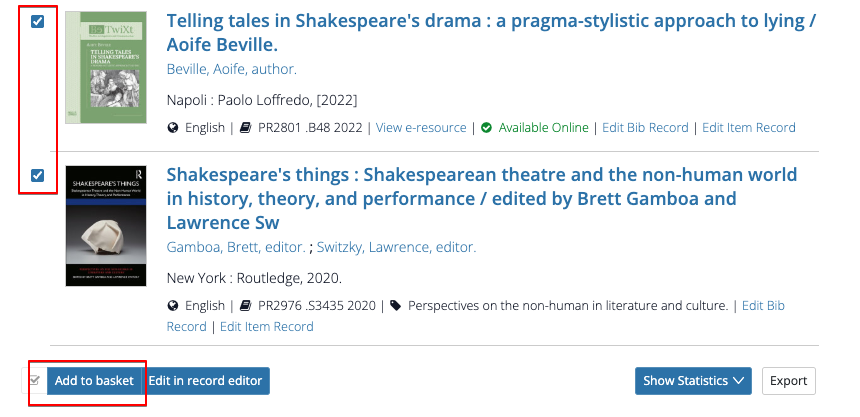
To add records to basket from the Brief view, check the box next to the records you want to add. Then Click "Add to basket" at the bottom of the page. Choose the basket where you wish to add the records. You can also add a note to the records.
Your basket will now be shown on the list of your personal baskets. Baskets are listed under their respective topics. In the list of baskets, click on the basket name. From the basket display, you can delete the basket or edit the basket settings. You can also edit the topic. Click Edit basket to edit basket settings. Under General settings, you can change the basket name, choose a different topic from the list of existing topics, or add a new topic.
To add records to basket, go to Search and search for relevant records. Records can be added to your basket both from the Brief view and from the Detailed view.
To add records to basket from the Brief view, check the box next to the records you want to add. Then Click "Add to basket" at the bottom of the page. Choose the basket where you wish to add the records. You can also add a note to the records.
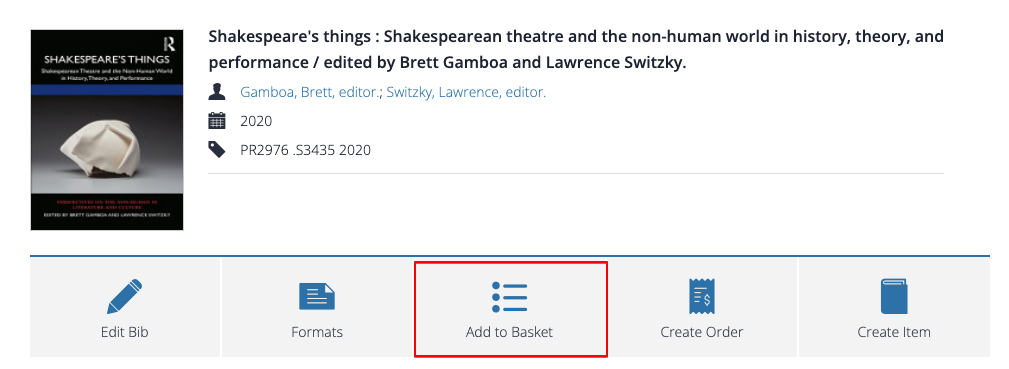
 To add a record to the basket from the Detailed view, click the Add to basket button in the action bar. Then choose basket as shown above.
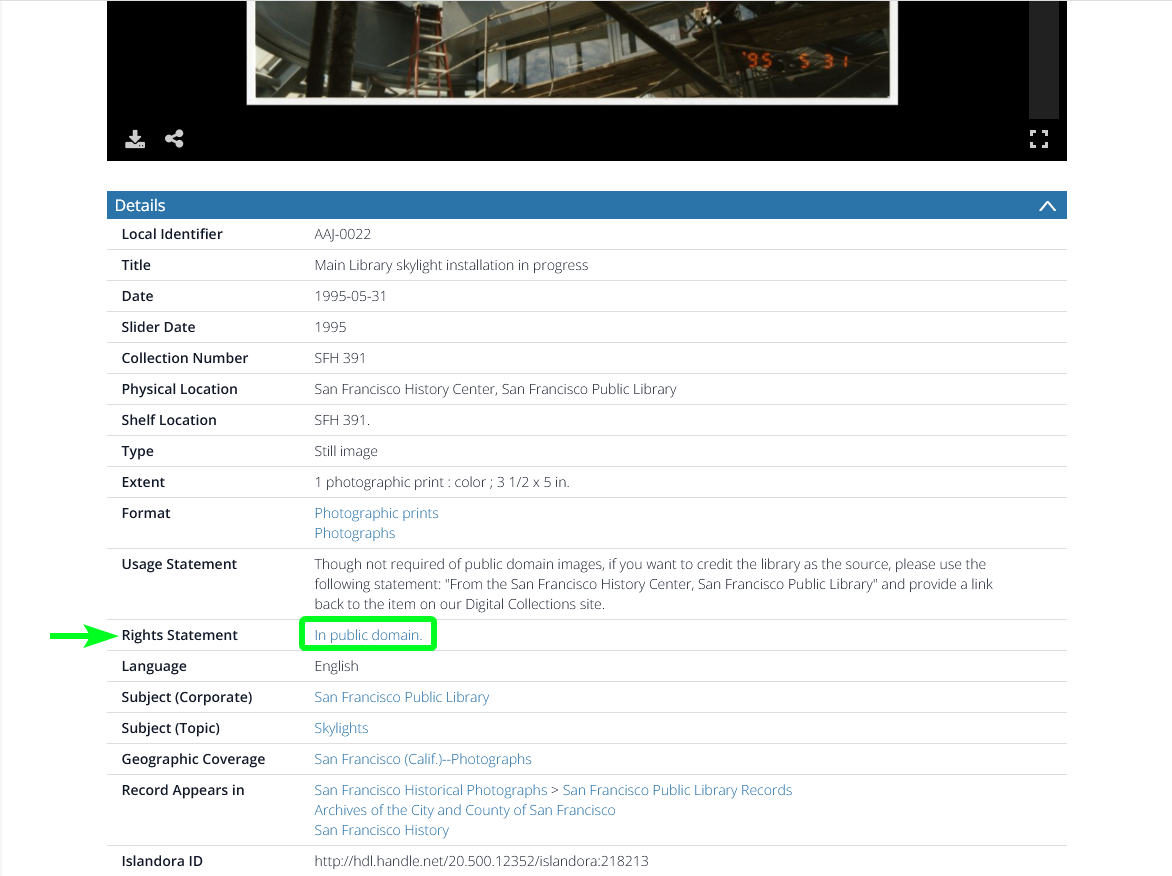
SFPL welcomes use of its Digital Collections by the public. However, depending on the type of use and the copyright status of the items, you may be required by law to get permission from the copyright holder(s) and/or SFPL's San Francisco History Center as the owner of the physical items. It is the user's responsibility to determine whether a use falls within fair use guidelines, and to get permissions when needed. Items in the public domain may be used freely, with no permission required. In digitalsf.org, items in the public domain are identified in the Rights Statement field of their record, with the words "In public domain," as shown in the snapshot below:
If the Rights Statement field says "In copyright" or some other designation, you may need to identify and get permission from the copyright holder. Permissions guidelines for items held by SFPL's Archives & Special Collections-- including San Francisco History Center, Book Arts & Special Collections, and James C. Hormel LGBTQIA+ Center—can be found on the San Francisco History Center's Permissions page. For items held by other departments, please consult the item record's Usage Statement for guidance. If you have further questions, please email digicenter@sfpl.org.
Search for the phrase “In public domain” (including the quotation marks) to find thousands of images that fall in this category. Please be sure to check the Rights Statement for each individual image before reproducing.
Please email digicenter@sfpl.org and include the following:
Please email digicenter@sfpl.org and share what you know! User contributions about people, places, events, and contexts represented in digital collections make them more accurate and more interesting.
For comments, suggestions, or questions about the website, please email digicenter@sfpl.org.
Please contact the San Francisco History Center at 415-557-4567 or visit the department's donations page to learn more about archival donations.
SFPL has been digitizing photographs from its collections since the late 1990s, so that is the format that is most represented in SFPL's Digital Collections. Our new digitalsf.org platform offers streaming video features, so we plan to add video as digitization projects progress. Stay tuned!
IIIF stands for “International Image Interoperability Framework” and is a set of shared parameters to make images easily recognizable in different types of online image viewers.
For items held by departments in Archives & Special Collections, see the "Citing Images" section of the San Francisco Historical Photographs Collection Permissions page. For other items in digitalsf.org, please use the following citation format: [Local identifier], [title], San Francisco Public Library.
These digitized collections are accessible for purposes of education and research. We’ve indicated what we know about copyright and rights of privacy and confidentiality. Due to the nature of archival collections, we are not always able to identify this information. We welcome communication from rights owners so that we may provide accurate information on our materials. Please contact digicenter@sfpl.org with any concerns.